The My Advisee List (also labeled My Assigned Tutees) displays all students currently assigned to you for advising, tutoring, or academic support. This section provides an organized overview of your advisees, including their academic performance indicators and E-mail addresses.
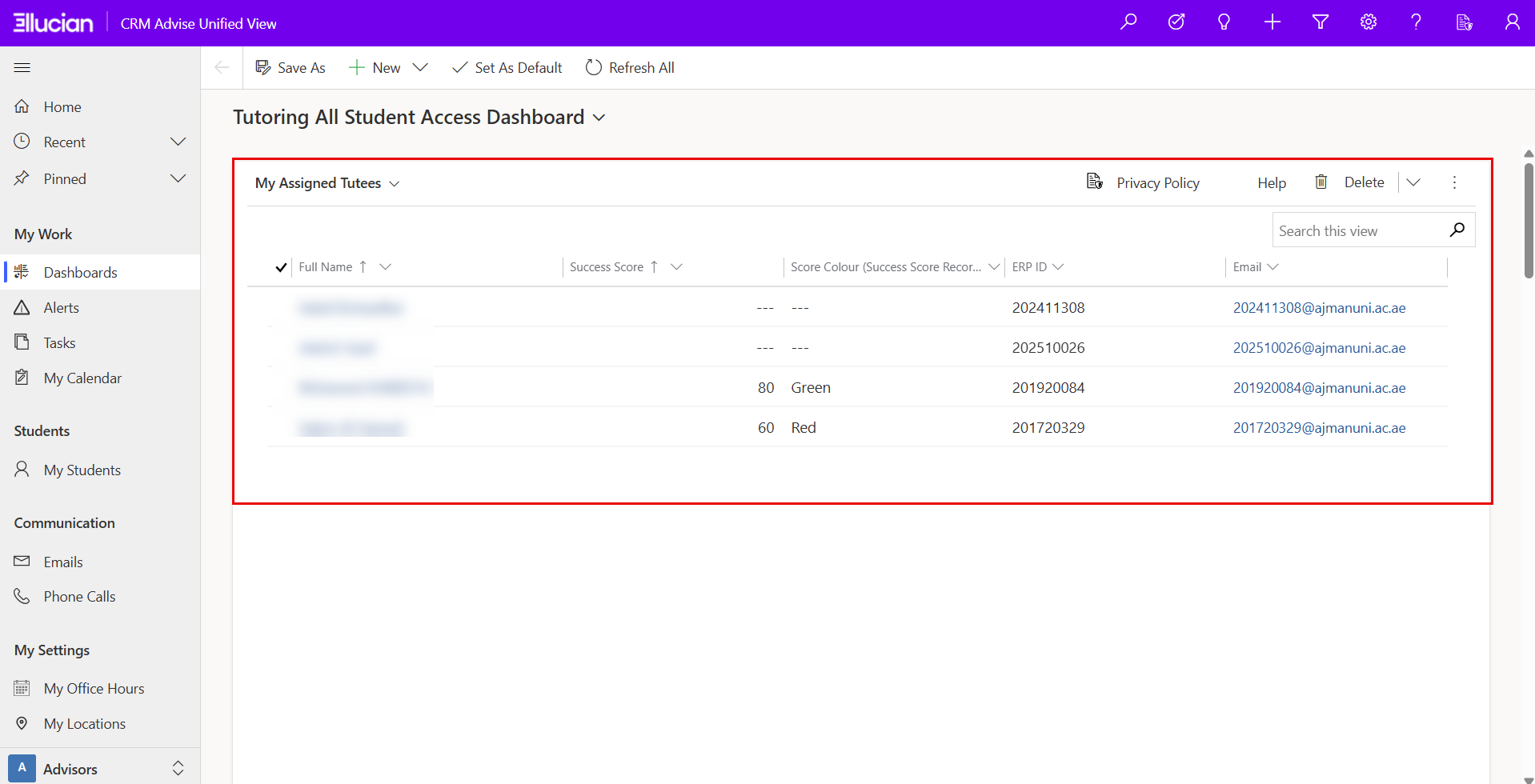
Key Features and Layout:
1. Advisee Table:
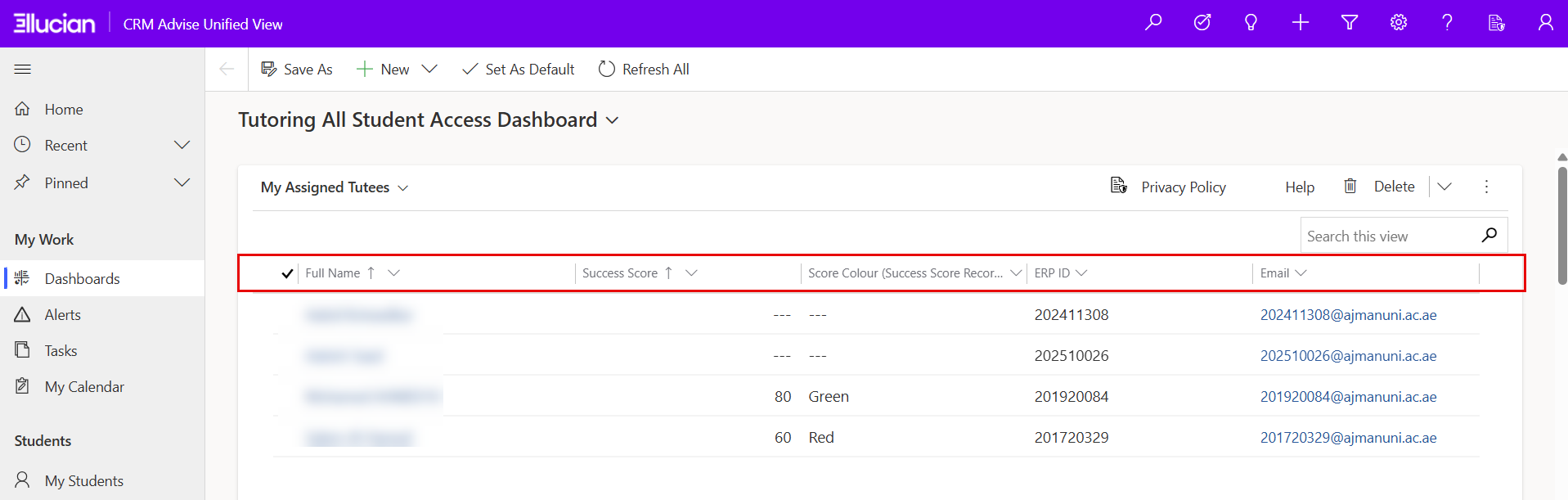
The central area of the page lists all assigned advisees along with key details that help you prioritize and manage your caseload effectively:
- Full Name: Displays the advisee’s name; clicking the name opens their detailed student profile.
- Success Score: Indicates the student’s academic performance based on institutional success metrics.
- Score Colour: Provides a quick visual representation of the student’s standing (e.g., Green for satisfactory, Red for at risk).
- ERP ID: The student’s unique identification number within the university’s Enterprise Resource Planning (ERP) system.
- Email: Shows the advisee’s university email address for direct communication.
2. Search This View:
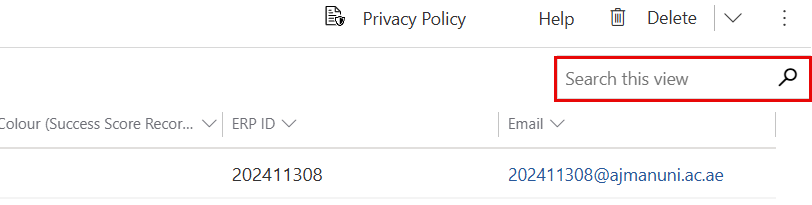
Use the Search This View bar (located in the top-right corner of the list) to quickly locate a specific advisee by name, ERP ID, or email address.
This feature filters results only within your assigned advisee list, making it easy to focus on the students you are directly responsible for.
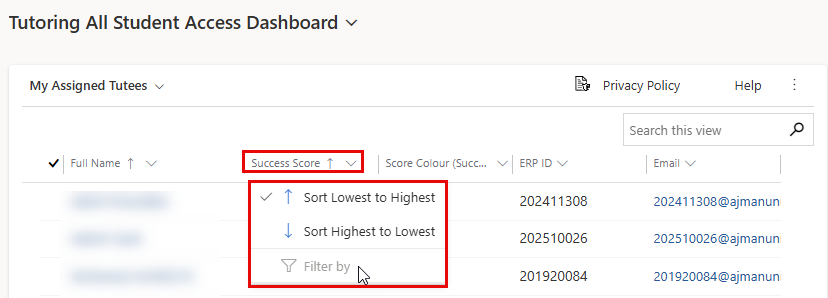
3. Sorting:
 {height="" width=""}
Click any column header (such as Full Name, Success Score, or ERP ID) to sort data in ascending or descending order.
4. Viewing Advisee Details
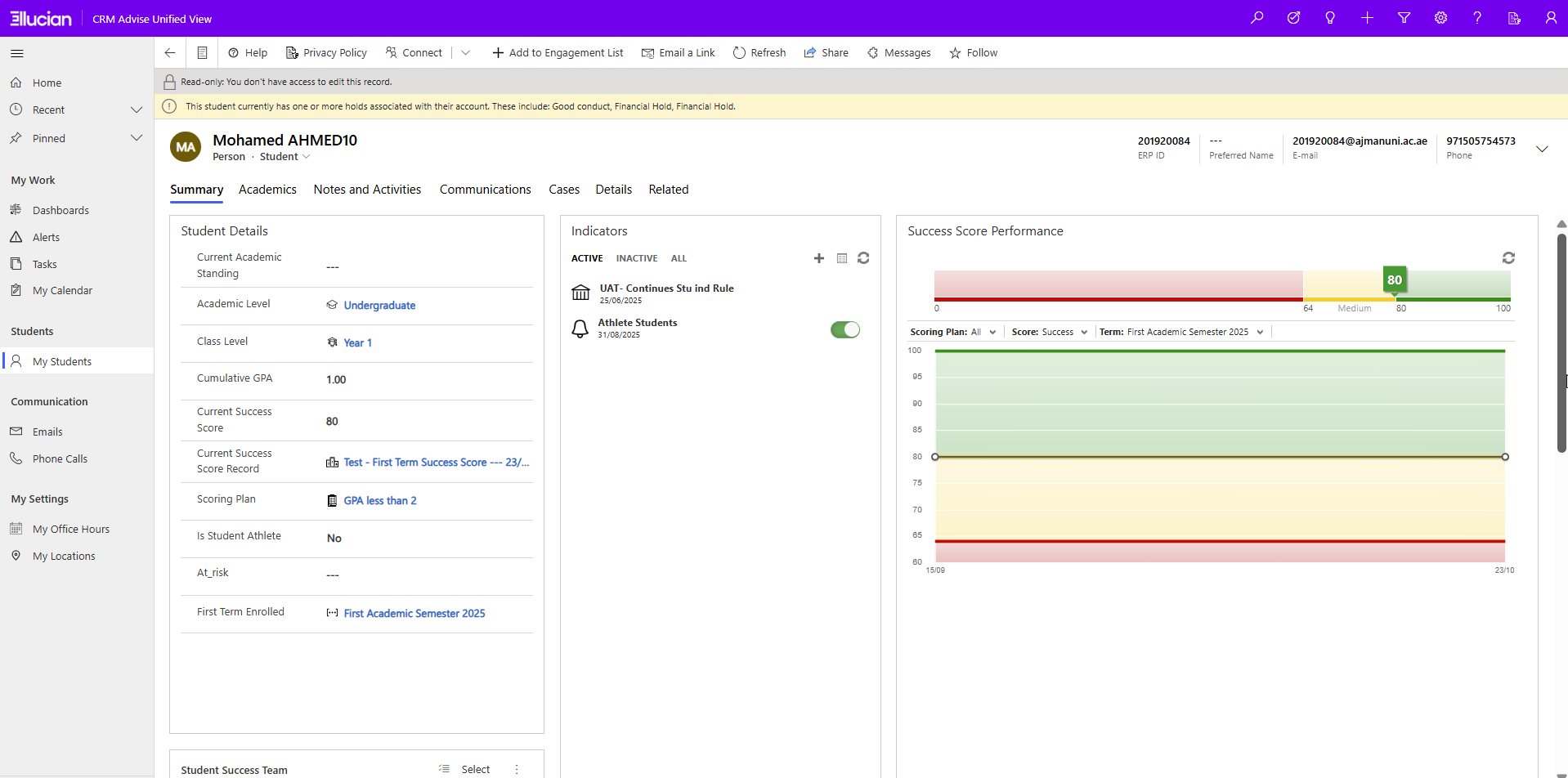
When you click on an advisee’s name from the My Advisee List, their detailed student profile opens. This view provides a comprehensive summary of the student’s academic information, advising indicators, and engagement records, all in one place.