Once you have set the quiz settings, you can start adding questions that will appear to students by following the steps below:
Inside the course, click on the quiz.
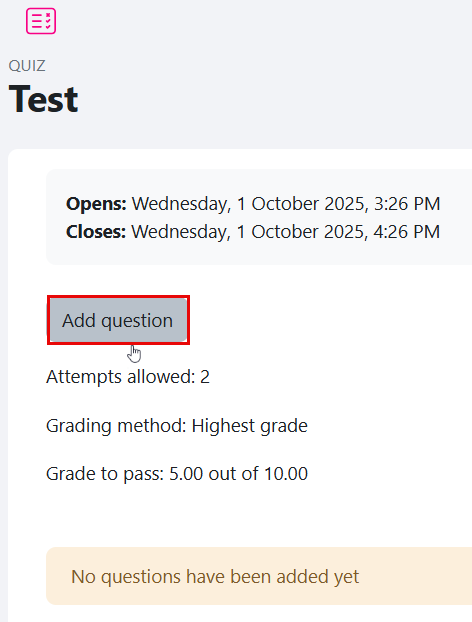
Click on Add question.
Note:
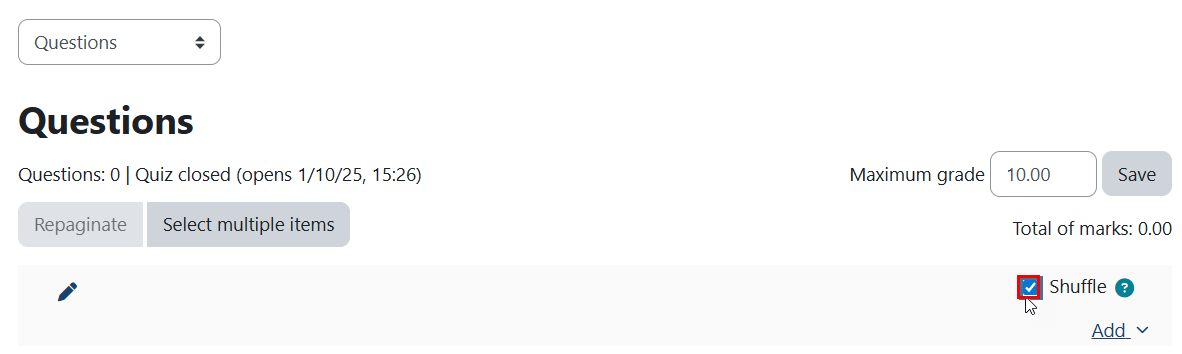
To shuffle questions each time a student attempts the quiz, enable the Shuffle option.
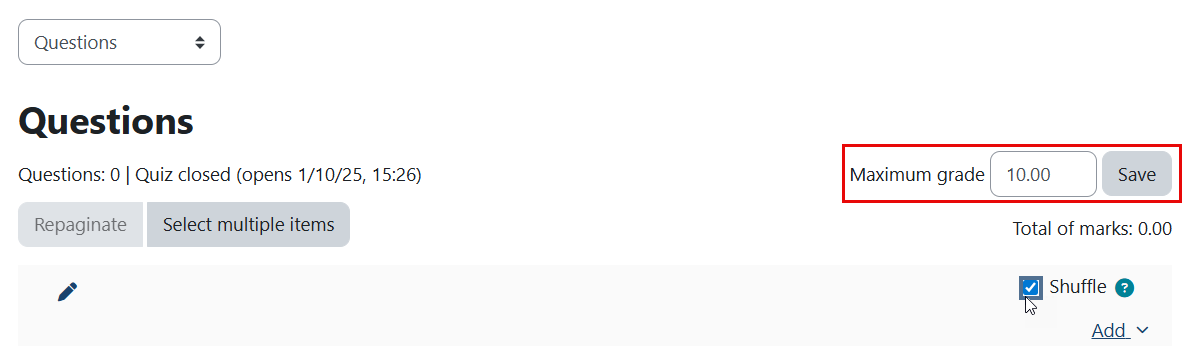
If desired, you can adjust the maximum grade for your quiz, then click "Save".
You can add questions in one of the following ways:
- Add a New Question
- Add a Question from a Question Bank
- Add a Random Question
Let’s explore how to add each one.
Add a New Question
You can start adding questions one at a time by following these steps:
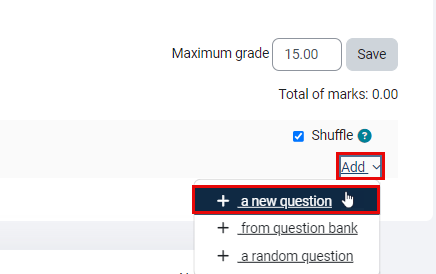
Click the Add button, then select a new question.
Select the question type, then click Add.
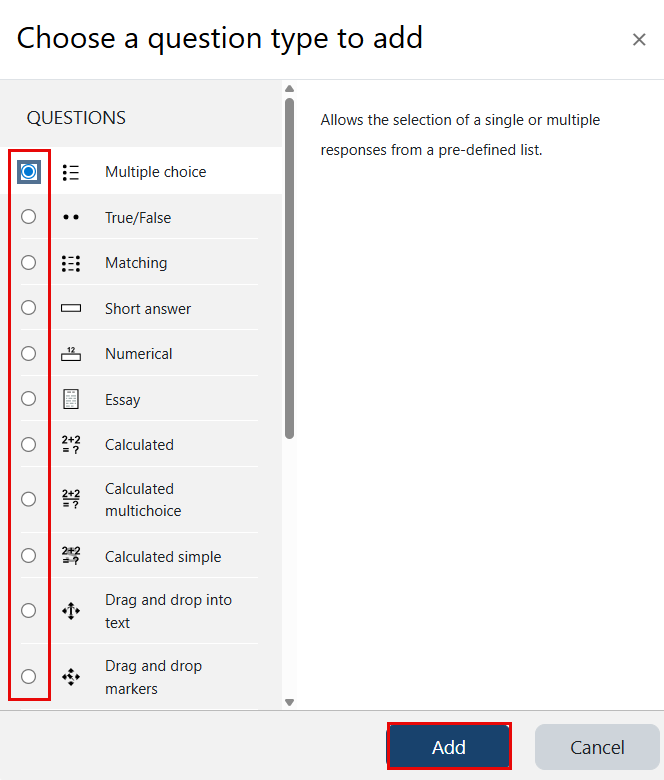
Enter the question details. You can exploree this article to learn more about each question type. Note: Students will not see the question name; it is for your reference only.
Click the Save changes button when you’ve finished creating the question.
Repeat steps 1–4 to add as many questions as needed.
The quiz will be available to students based on the settings you configured.
Note:
For the next two methods, you must import the question bank before proceeding. Learn how here.
Add question from question bank
To add questions from the question bank, follow these steps:
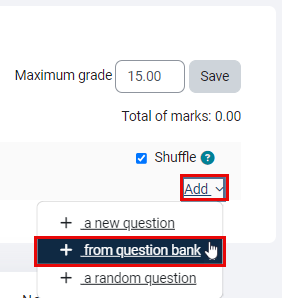
Click the Add button, then select From question bank.
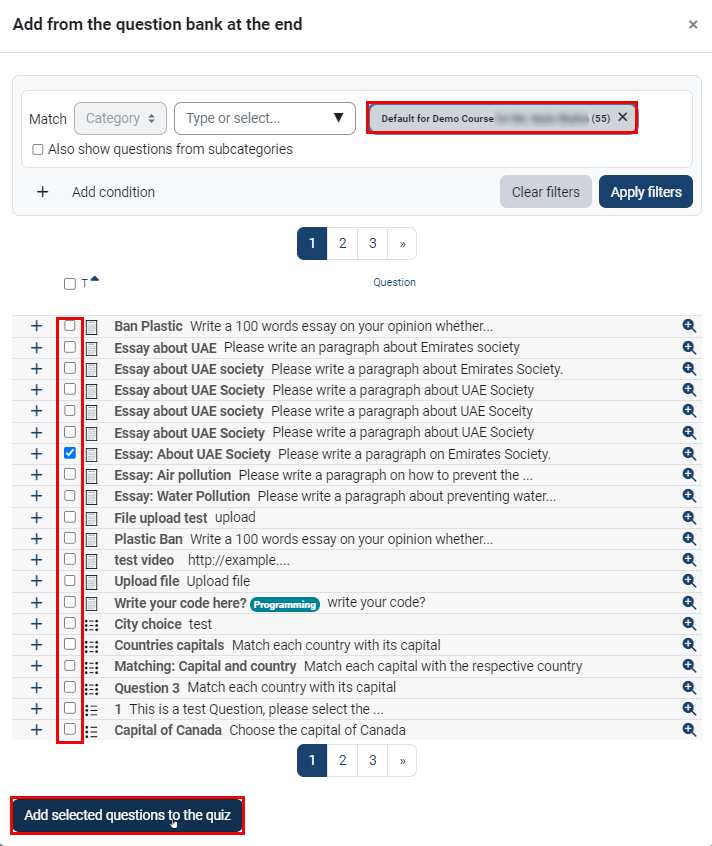
You will be able to see the number of questions in your question bank by checking the number listed in the selected category, as illustrated. You can select the questions you want to add to the quiz and click the "Add selected questions to the quiz". as demonstrated below. Note that these questions may have already been used in previous quizzes for this course.
Add a Random Question
You can add questions randomly from a question bank, by following the below steps:
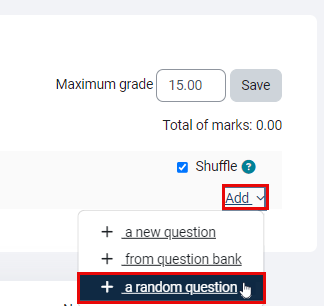
Click the Add button, then select A random question.
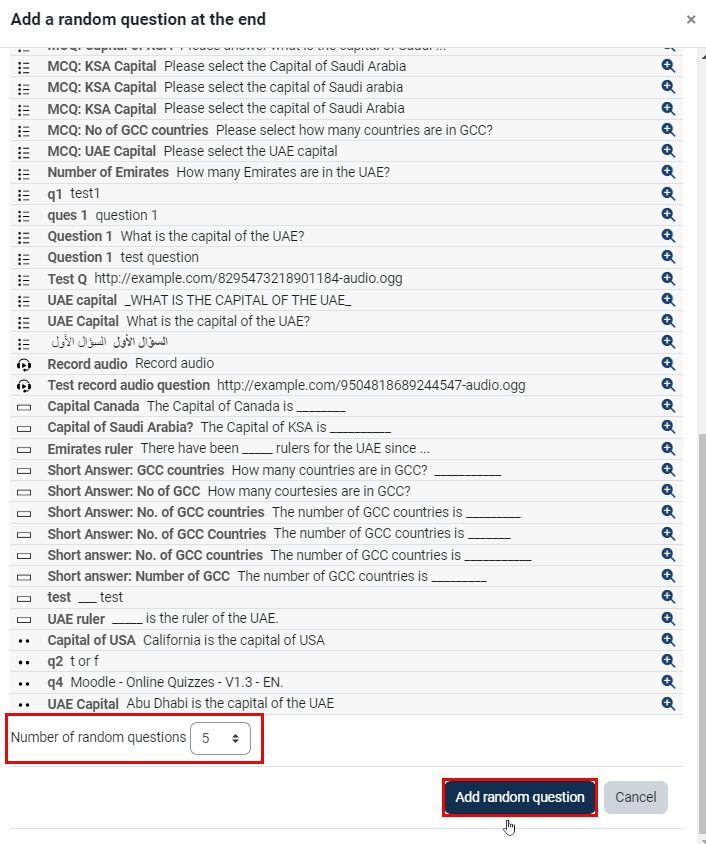
You will be able to see the number of questions in your question bank by the number mentioned in the selected category. Enter how many random questions you want to add in the Number of random questions field. When finished, click Add random question.
Once you have added the random questions, they will appear in your quiz as shown below:
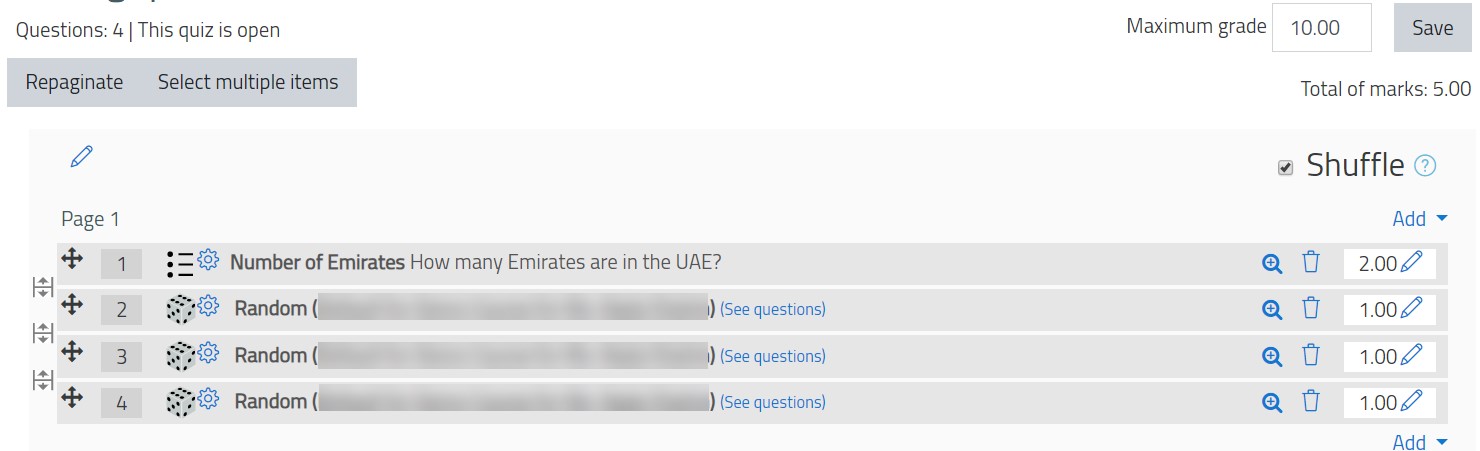
To edit the total mark for a question, click the pen icon next to it. After editing, press Enter to save the new mark.
