Forums work similarly to the Announcement feature. You can create a forum to allow students to interact with you and with one another by posting comments or starting new topics.
To create a forum, follow these steps:
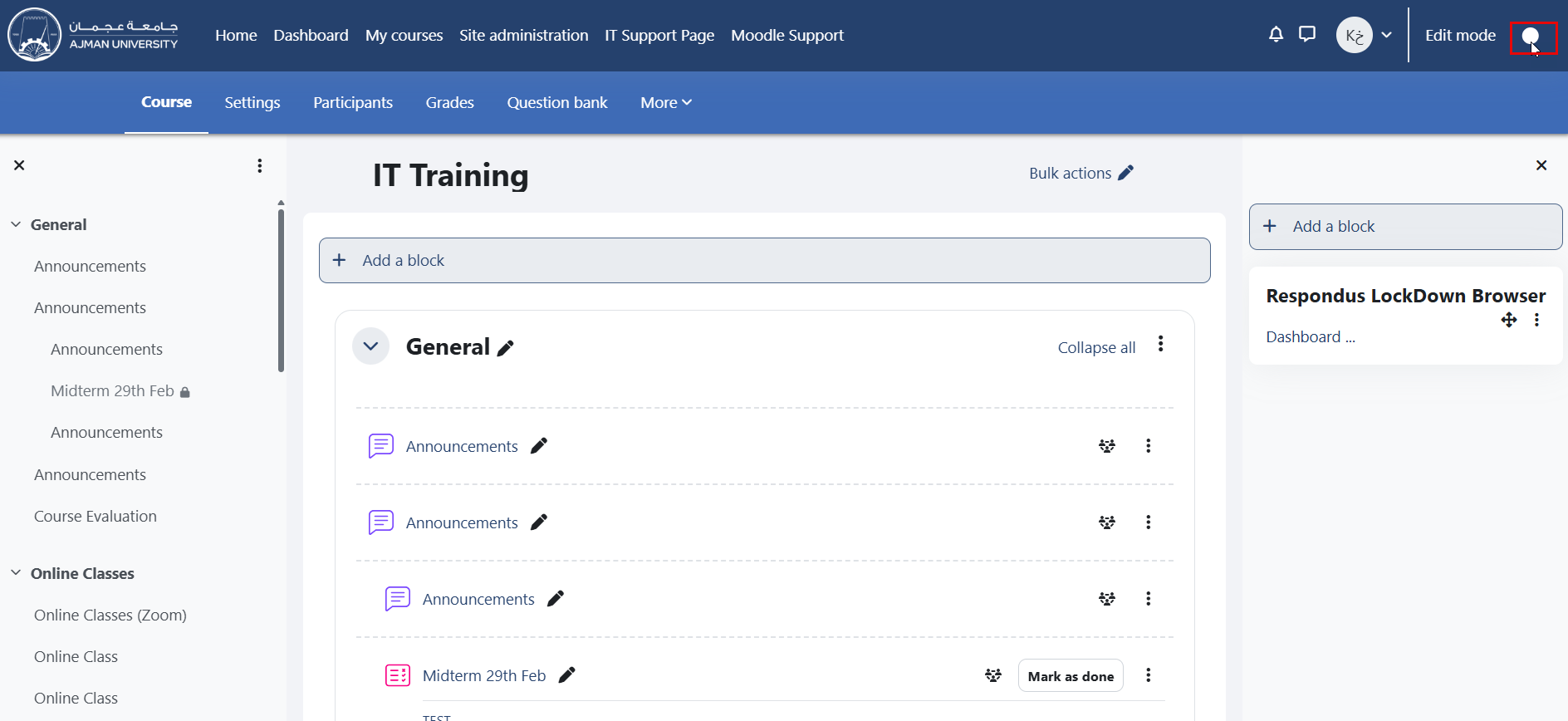
- In the course, enable editing by clicking the "Edit mode" toggle switch, as shown below:
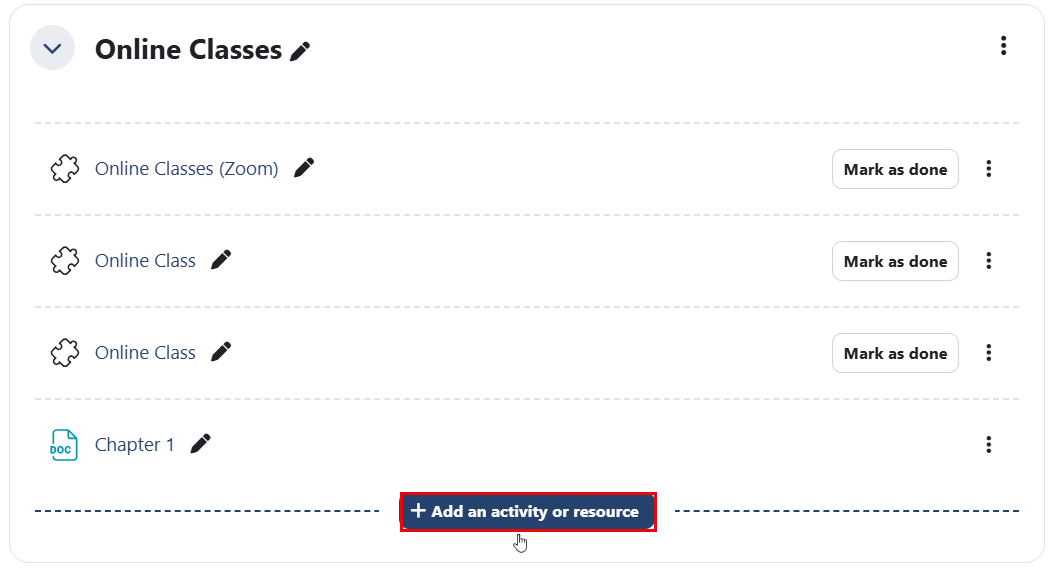
- Navigate to the section where you want to add the forum and click "Add an activity or resource."
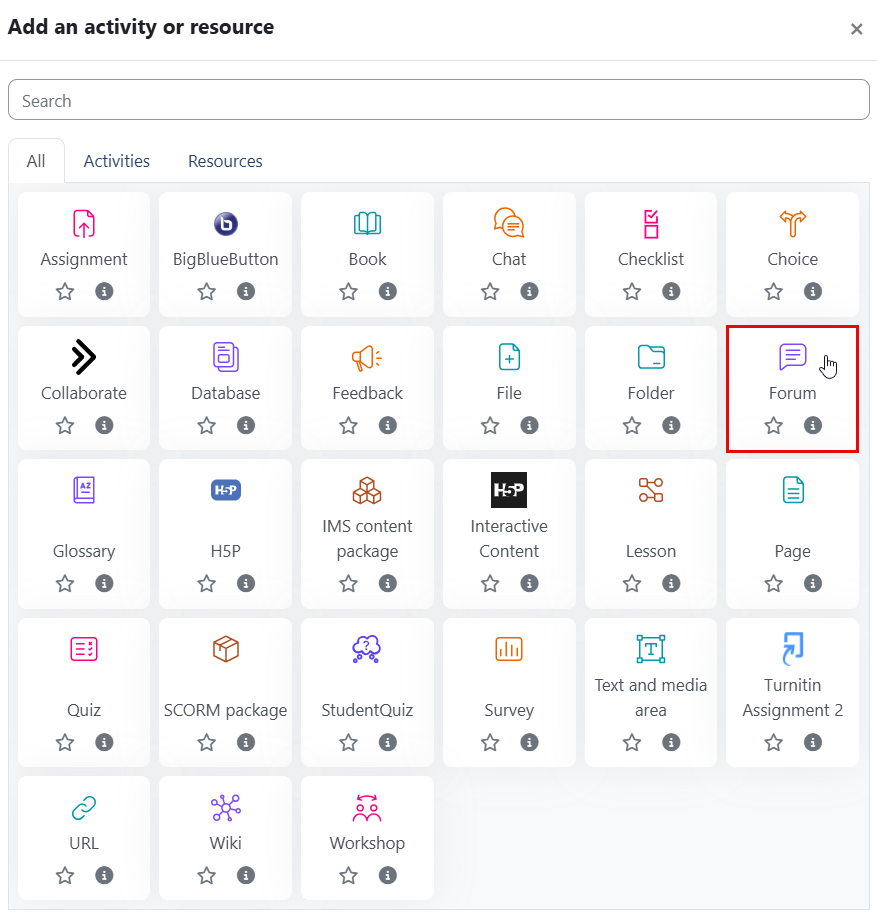
- Select "Forum" as the activity type.
- Enter a forum name and provide a detailed description about the forum.
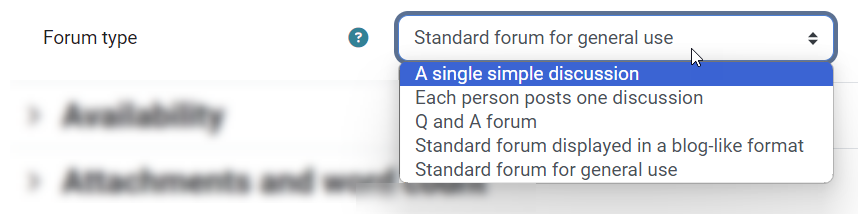
- Choose a forum typefrom the following options:
- Single simple discussion: a single discussion topic which everyone can reply to (cannot be used with separate groups).
- Each person posts one discussion: each student can post a new discussion topic, and everyone can reply to it.
- Q & A forum: students must post their perspectives before viewing other students’ posts.
- Standard forum displayed in a box-like format: an open forum where anyone can start a new discussion anytime, and in which discussion topics are displayed on one page with “Discuss this topic” links.
- Standard forum for general use: an open forum where anyone can start a new discussion anytime.
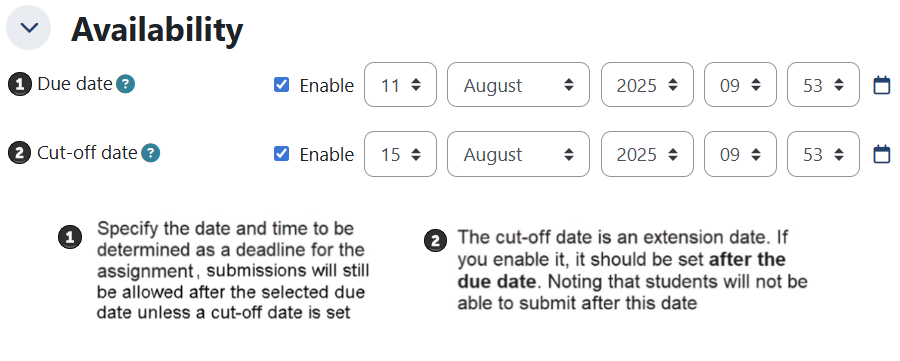
- In the Availability section, set the due date and the cut-off date:
 Note:
Note:- Students can still post after the due date. To prevent any posts after a specific date, enable a cut-off date, after which no posts will be allowed.
- If no cut-off date is set, posting will always be allowed.
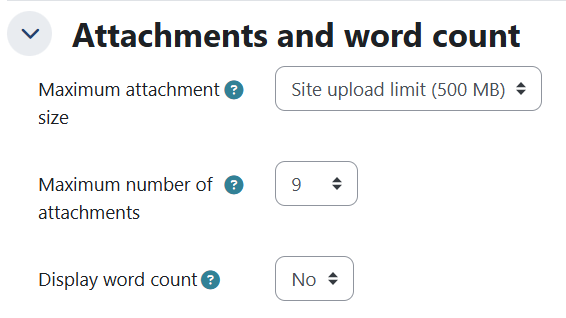
- You can set limits for attachment size, number of attachments, and word count display.
 Note:
Note:The maximum file size allowed for attachments is 500 MB, which is the site’s upload limit. Any file larger than this cannot be uploaded.
- You can use the Restrict Access feature to allow only students from a specific CRN to access the forum and communicate with each other. If you do not use the Restrict Access feature, students in all CRNs will be able to interact with one another.
- Click Save.
Once you create the forum, you and your students will be able to interact with each other through comments.