The Instructor Live Proctoring option allows a video conference to run in the background during an online exam that uses LockDown Browser. This option is designed for live proctoring by the instructor.
- This method is recommended only for small class sizes, where it is feasible to observe and track all students.
- This option cannot be used on iPad devices unless the student has a second device for video conferencing.
This article explains how to enable live proctoring by following the steps below:
-
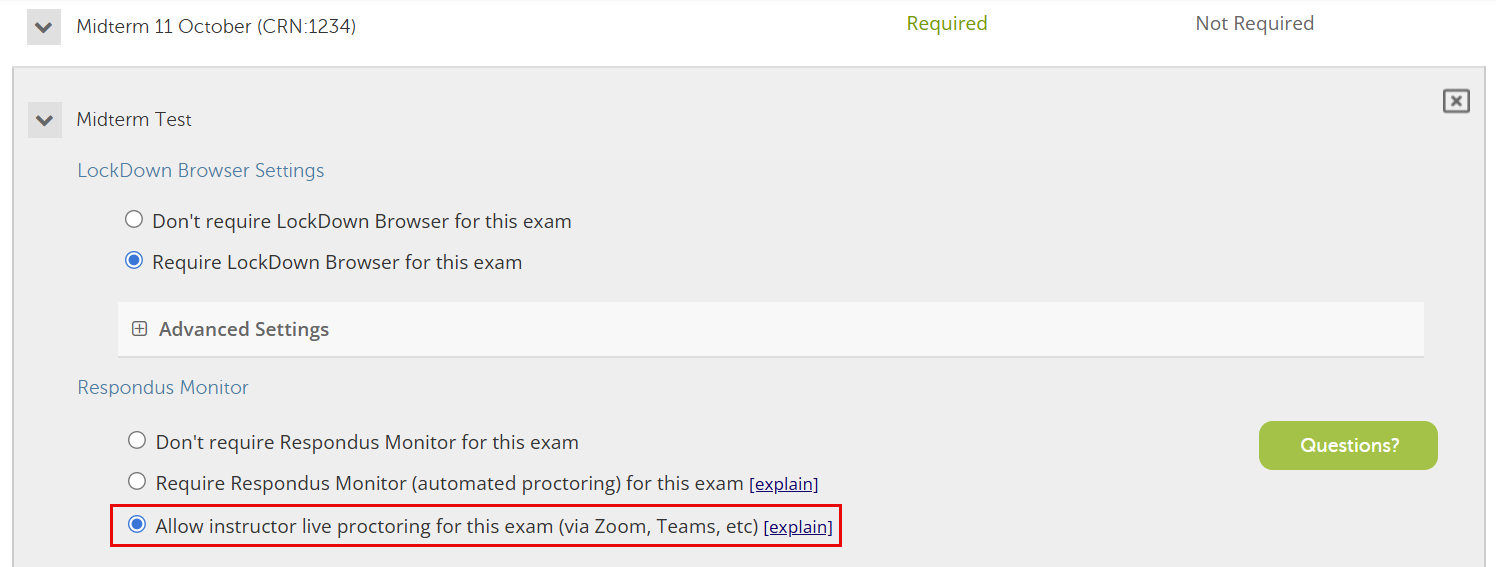
In the Respondus Monitor Settings, select the Allow instructor live proctoring for this exam (via Zoom, Teams, etc.) option.
-
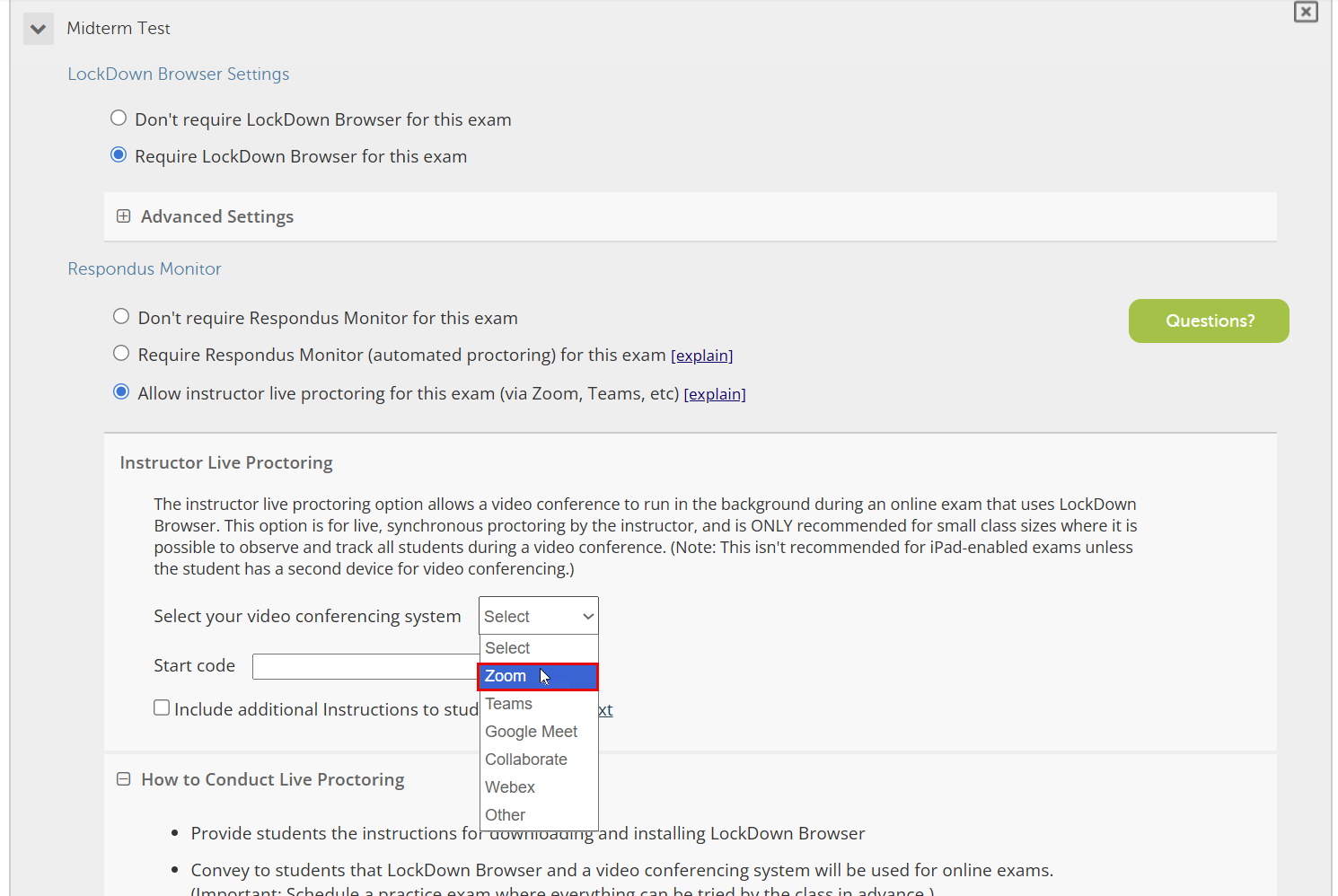
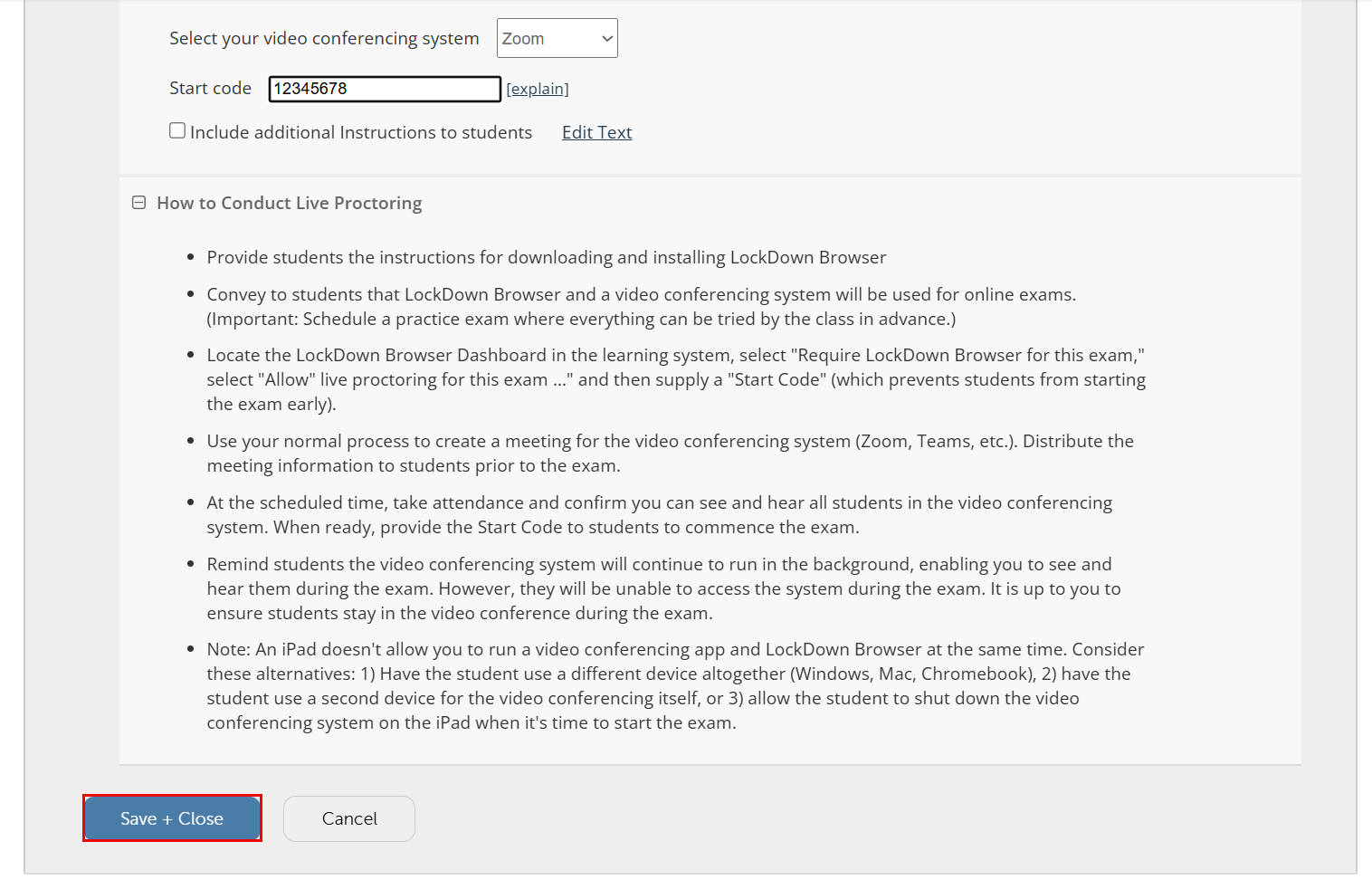
Choose the platform you will use for live monitoring (e.g., Zoom, Microsoft Teams).
-
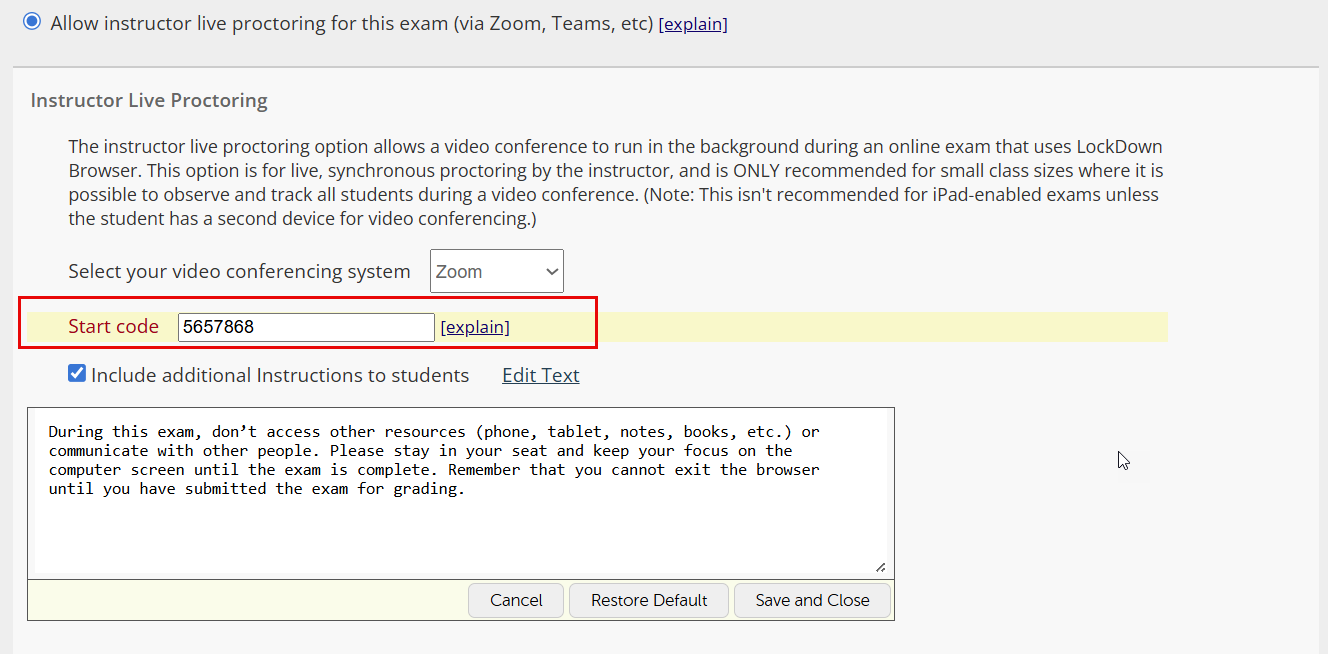
Enter the Exam Start Code to prevent students from entering the exam early with LockDown Browser. Once everyone has joined the video conference, provide the code to students so they can begin the exam.
-
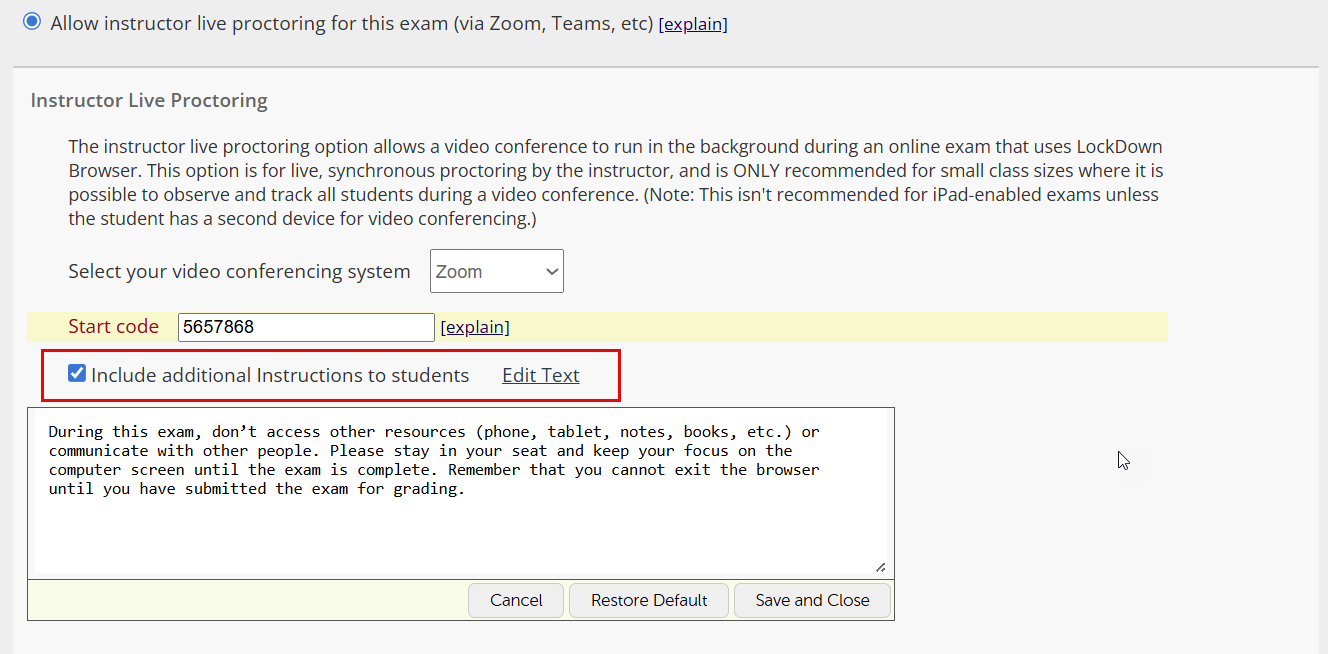
Enable the option to include additional instructions for students (optional). You may edit the instructions text as needed.
-
Click on the Save + Close button.
-
You will be able to view the quiz settings.
Use your normal process to create a meeting for the video conferencing system (Zoom, Teams, etc.). Distribute the meeting information to students before the exam.