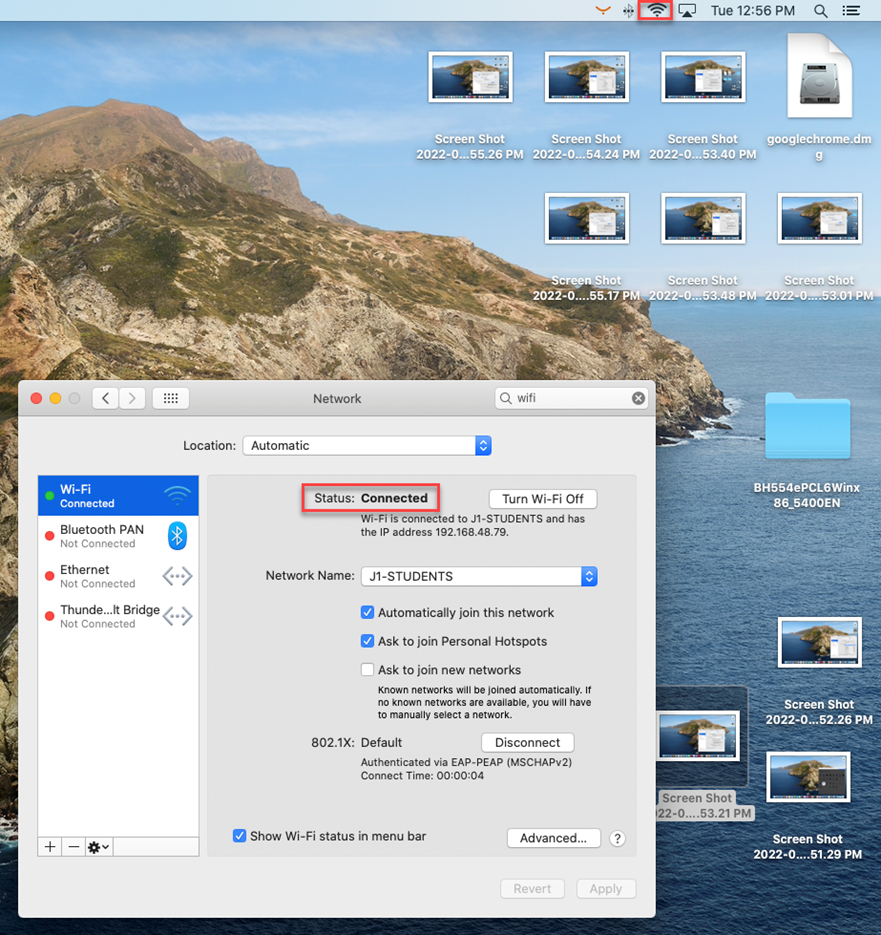
You can connect to AU wireless network from your PC or Laptop by following these steps
For Windows Users:
-
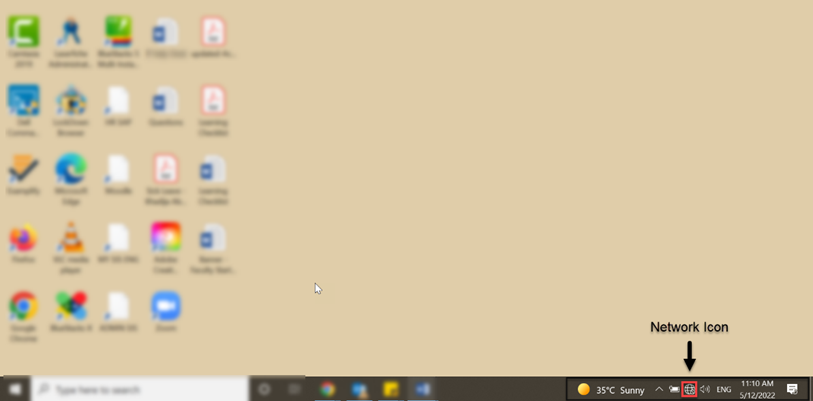
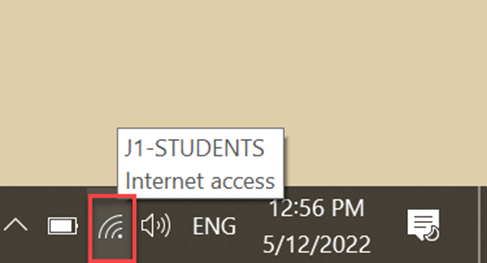
Go to your Notification area in the taskbar, then click on Network icon.
-
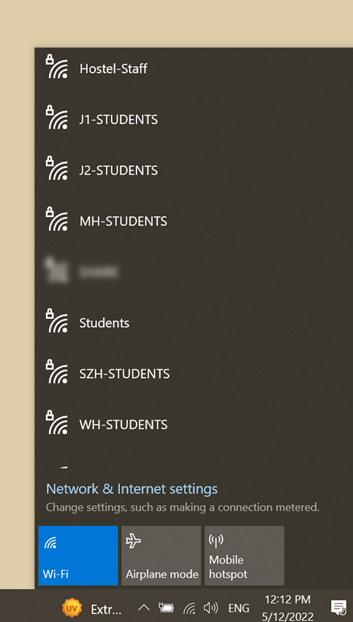
Select one of the networks assigned to Students based on your location.
-
Enter your student ID as the username (e.g., 2024xxxxx) and your password, then click on OK.
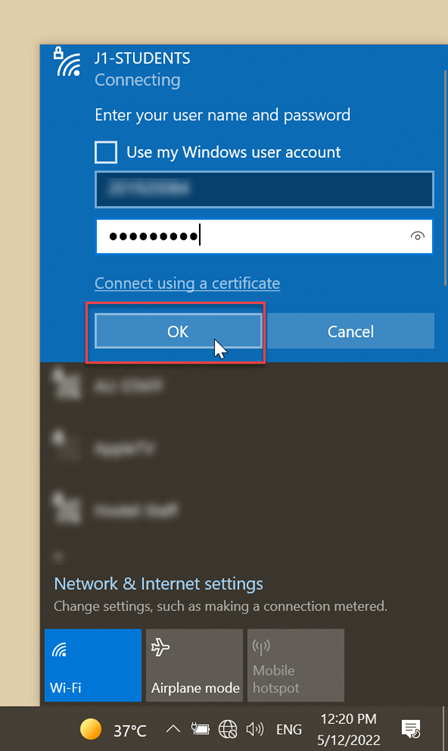
You must use the university ID issued by Ajman University as your username, not the email address.
Once connected, the Wi‑Fi icon will appear in the notification area.
For Mac users:
-
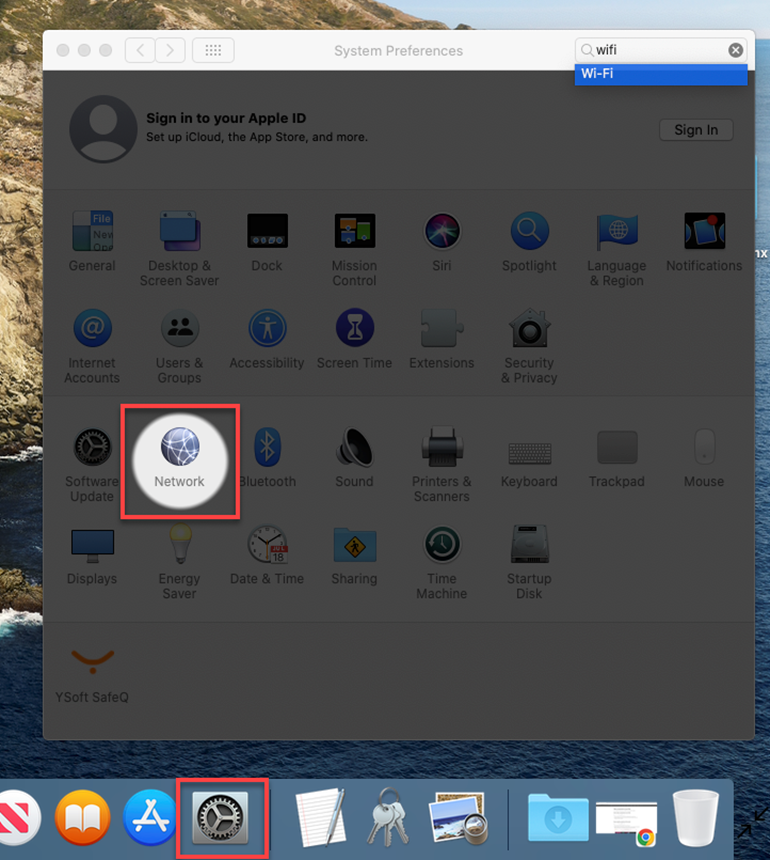
Open System Settings, then click on the Network icon.
-
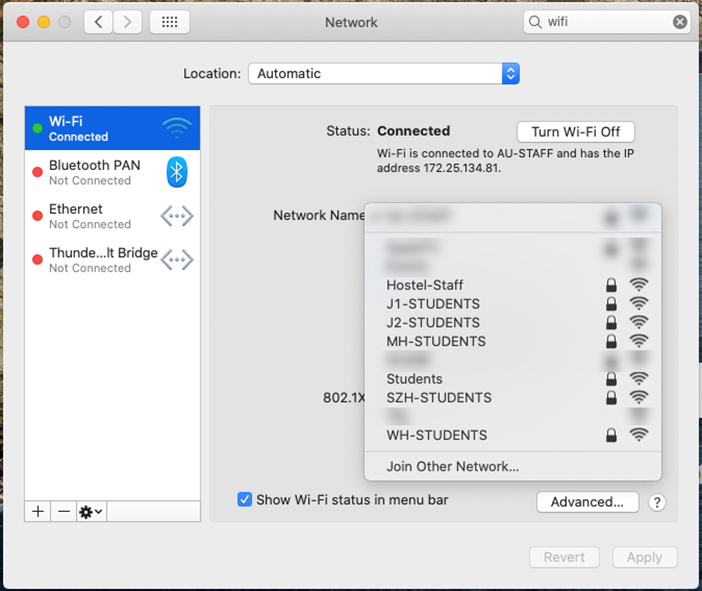
Select one of the networks assigned to Students based on your location.
-
Enter your student ID as the username (e.g., 2024xxxxx) and your password, then click on OK.
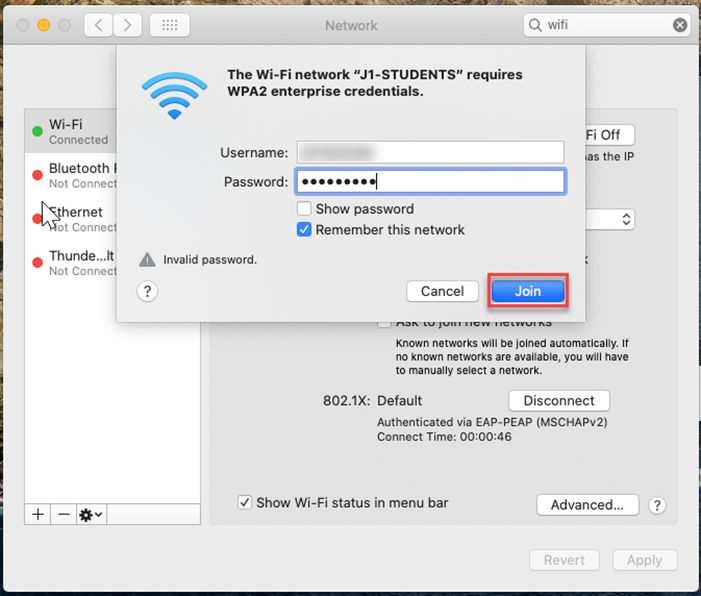
You must use the university ID issued by Ajman University as your username, not the email address.
Once connected, the Wi‑Fi icon will appear in the menu bar, and the status will display Connected.