Please Note:
This user manual is currently under review. A revised version reflecting the new Redwood user interface will be available soon.
-
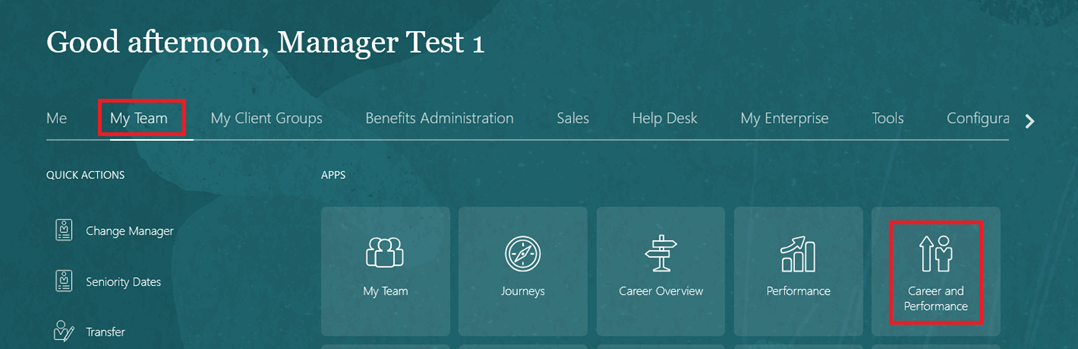
On the Home page, click on "My Team", then select "Performance and Talent Management".
-
Select an employee and click “Add” to set goals/KPIs for your direct report.

-
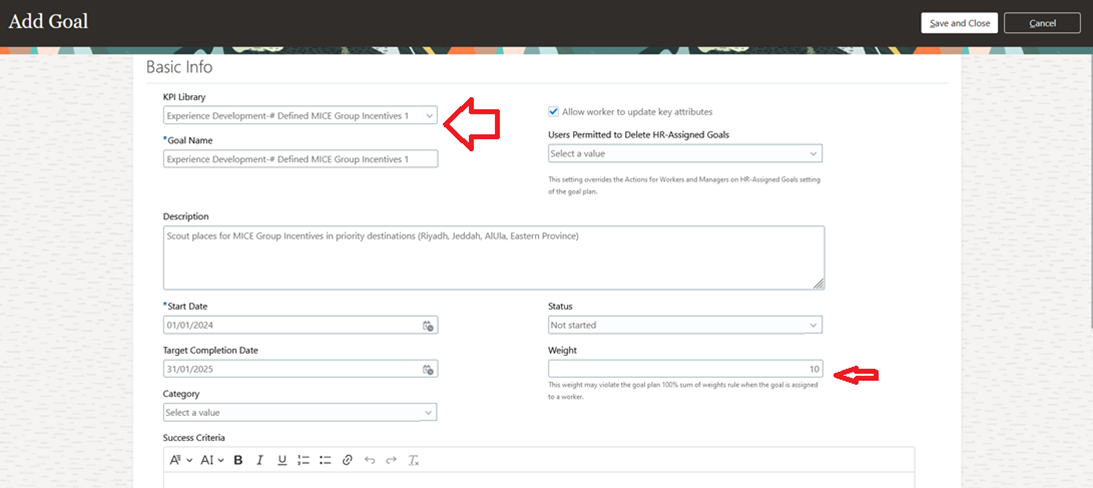
Fill out the Basic Info section, including the Goal Name, Description, and the goal's weight. Then, select the AU strategic goals related to your KPI.
-
Click on "Add" to include a measurement for your goal.

-
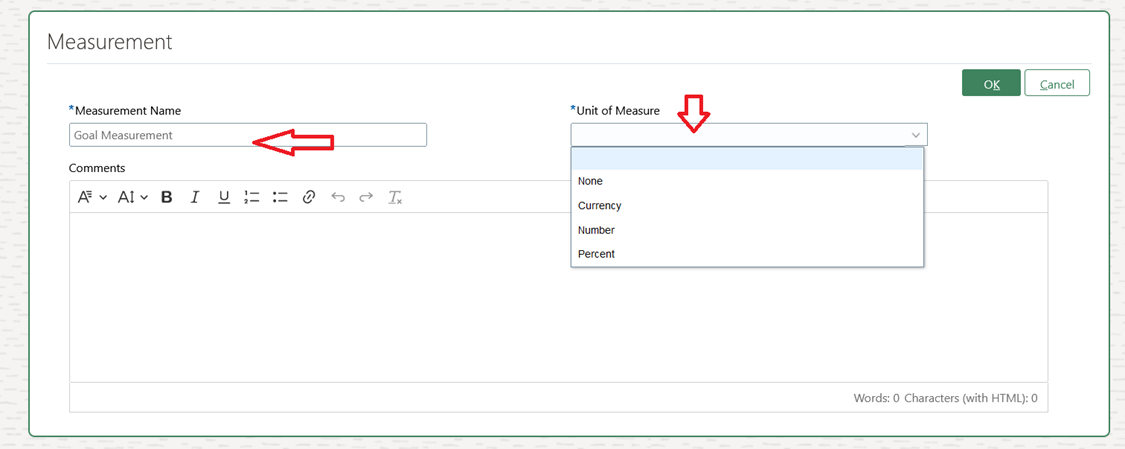
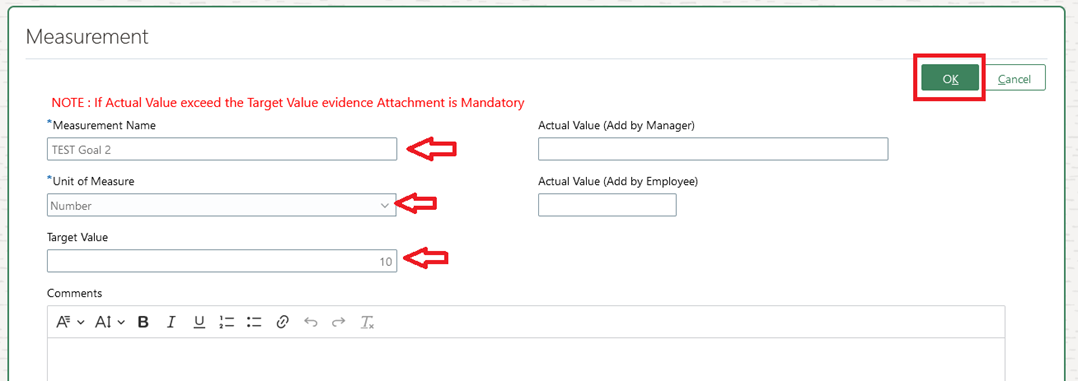
Enter the measurement name and select the unit of measure.
-
Input the target value, then click "OK".
-
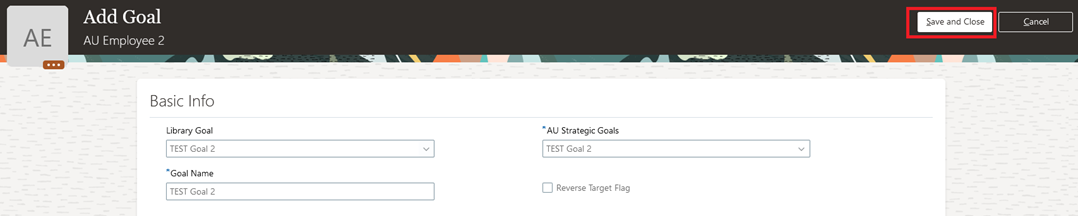
Click Save and Close.