-
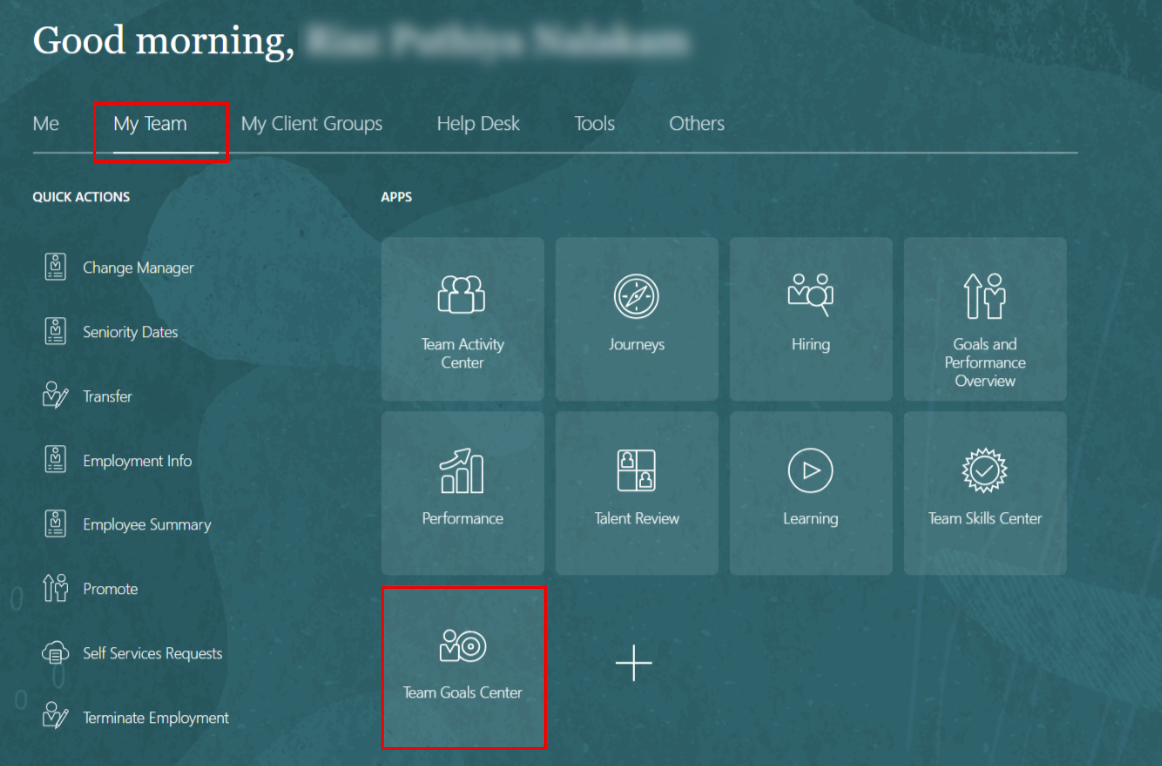
On the Home page, click "My Team", then select "Team Goals Center."
-
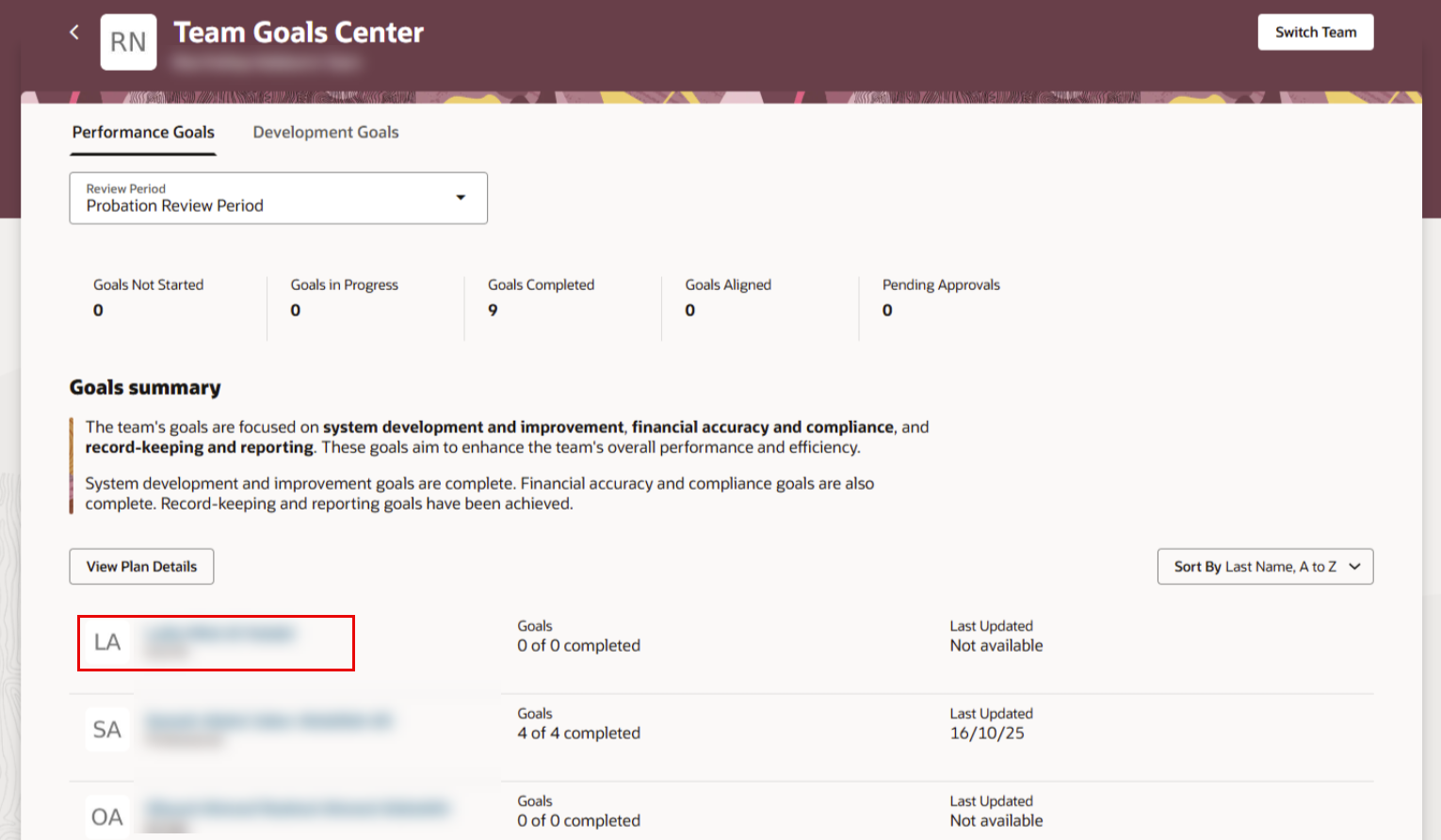
Click the name of the employee to whom you want to add goals.
-
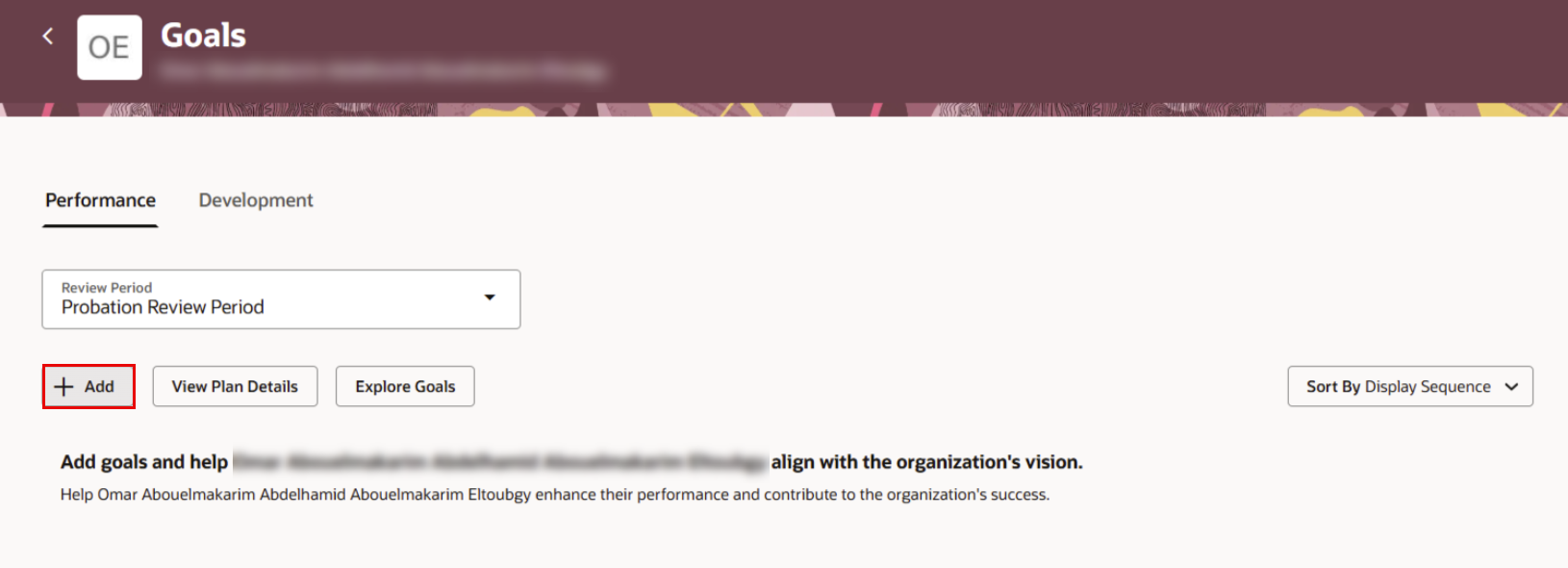
Click “Add” to set goals/KPIs for your employee.
-
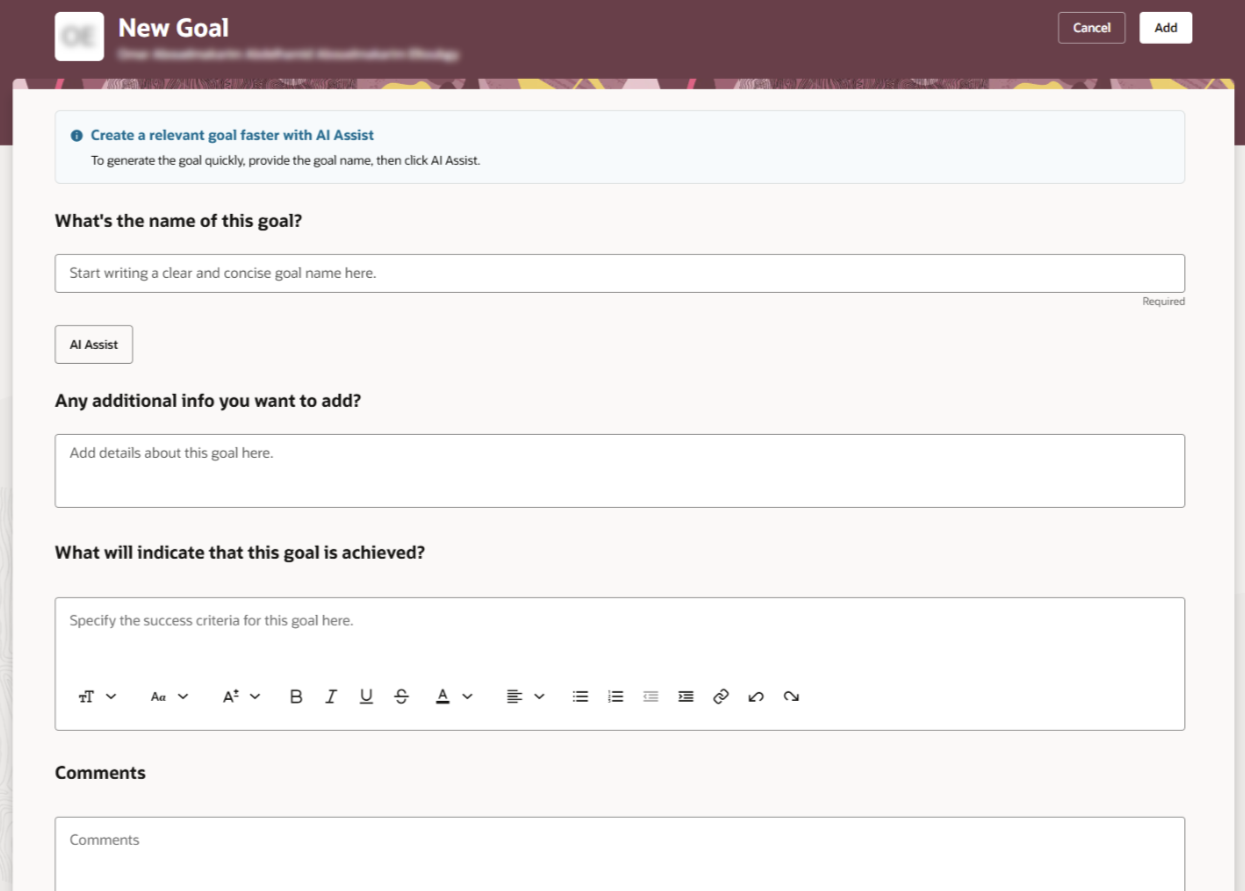
Fill out the new goal information, including Goal Name, Description, and the goal’s weight. Then, select the AU strategic goals related to the KPI.
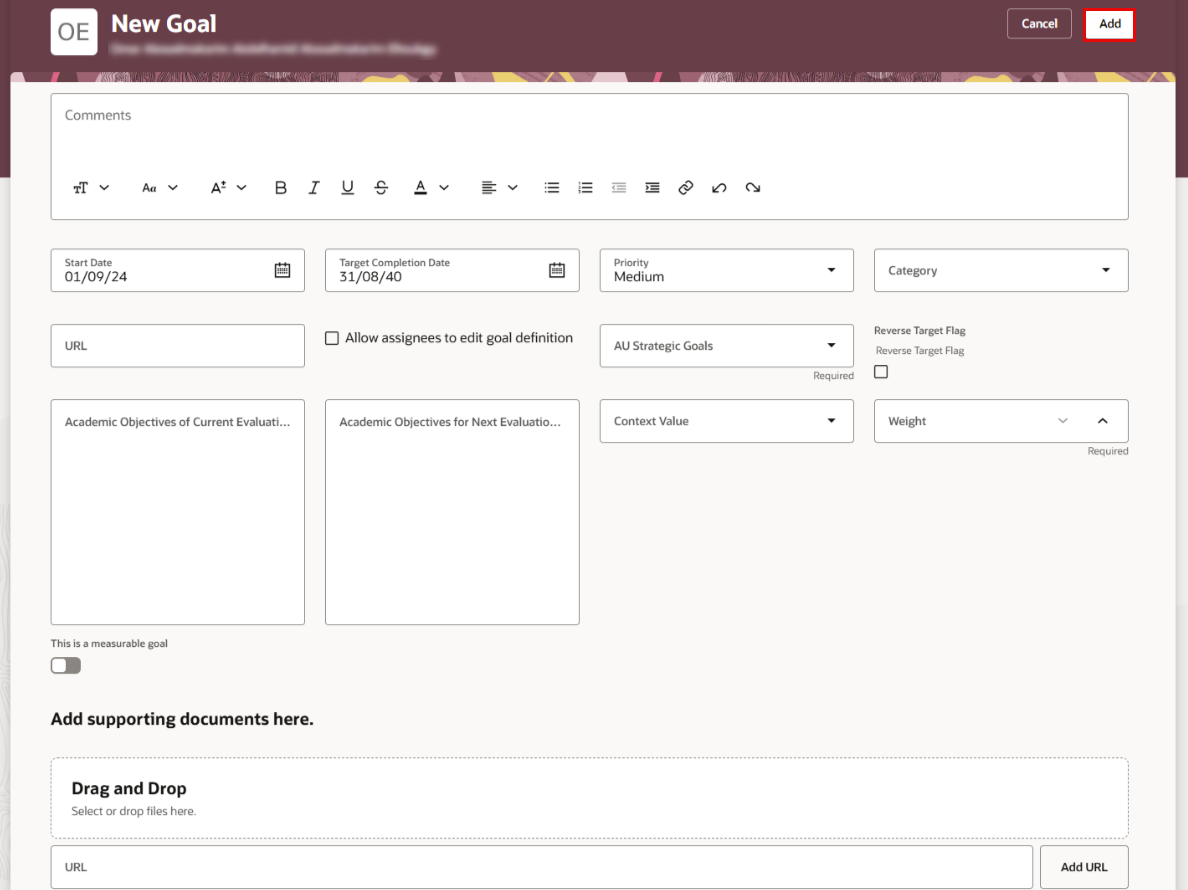
-
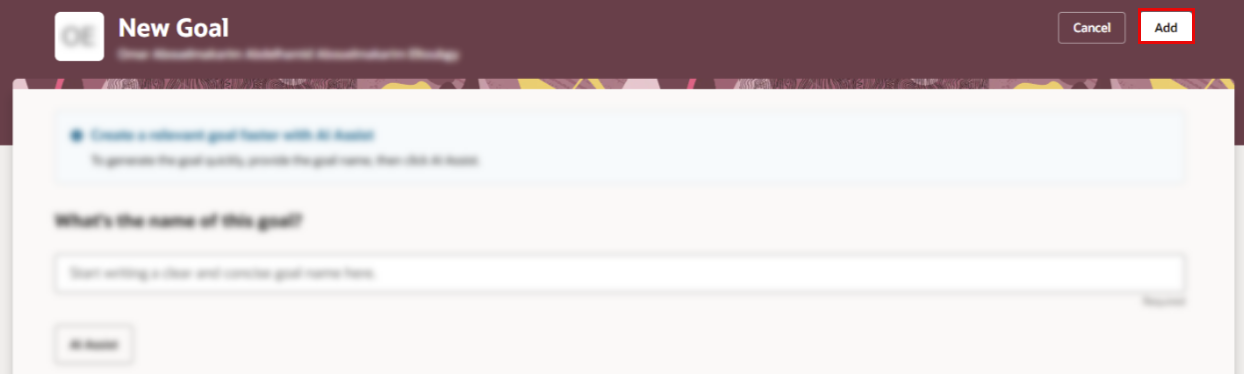
When finished, click the Add button.
Add Goals to the New Employee (In Probation Period)
- Updated on Mar 25, 2026
- Published on Jan 20, 2025
- 1 minute(s) read
- KA
Was this article helpful?