You can connect to AU wireless network from your Smatphone or Tablet by following the steps below:
For IOS users:
-
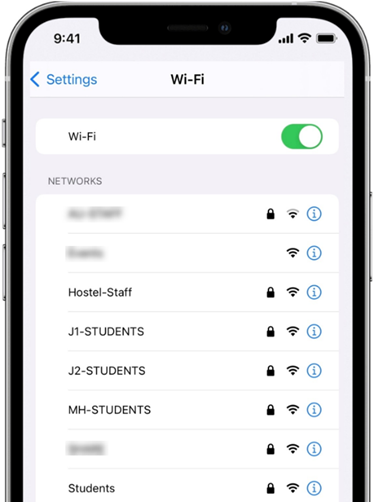
From your Home screen, go to Settings > Wi-Fi.
-
Turn on Wi-Fi. Your device will automatically search for available Wi-Fi networks.
-
Select one of the networks assigned to Students based on your location.
-
Enter your student ID as your username (e.g., 2024xxxxx) and your password, then tap Join.
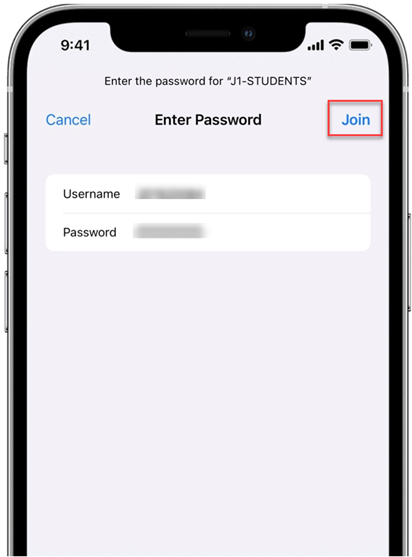
You must use the student ID issued by Ajman University as your username, not the email address.
- Trust the certificate to connect.
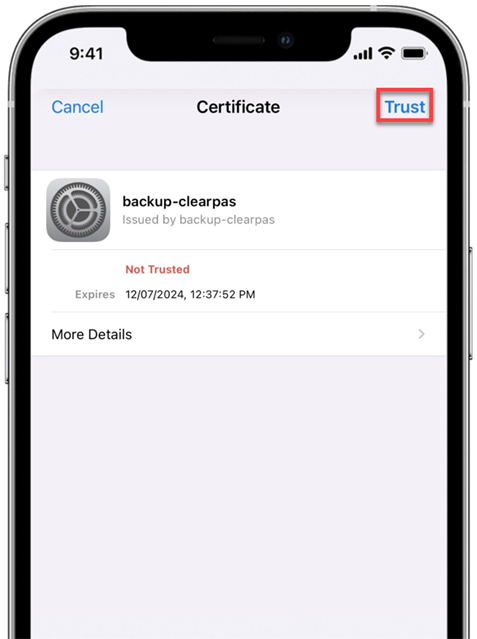
After you've joined the network, next to the network, you'll see a blue tick 
And in the top right-hand corner of your display, you can see the connected Wi-Fi icon 
For Android users:
-
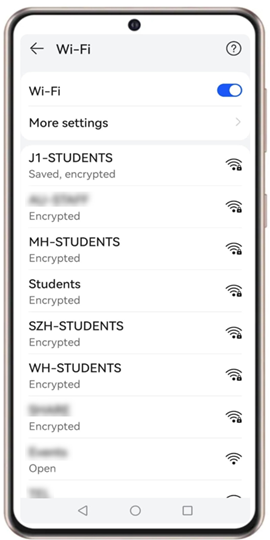
From your Home screen, go to Settings > Wi-Fi.
-
Turn on Wi-Fi. Your device will automatically search for available Wi-Fi networks.
-
Select one of the networks assigned to Students based on your location.
-
Enter your student ID as your username (e.g., 2024xxxxx) and your password.
-
Click on CA certificate, then choose “Do Not Validate”.
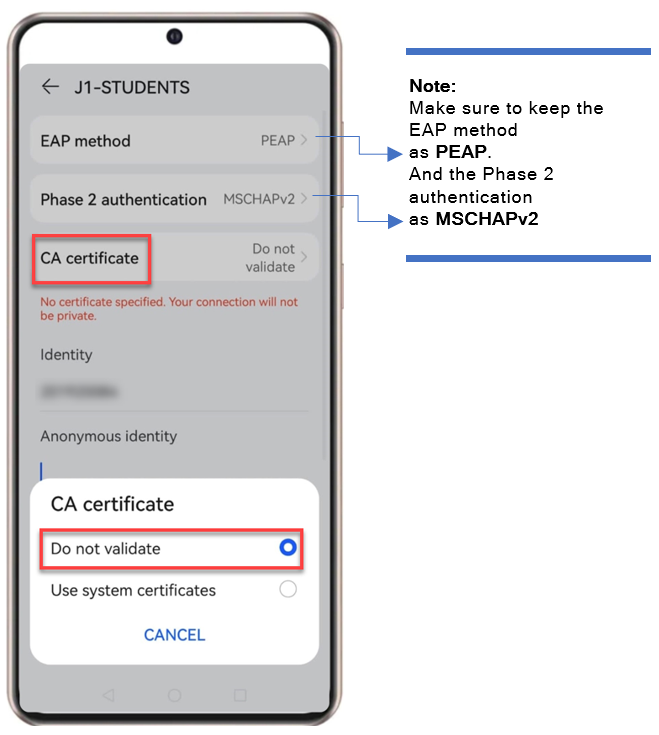
You must use the student ID issued by Ajman University as your username, not the email address.
- Click on Connect.